


Multi-Angle Folding Ruler – Copy Tricky Corners Before Cutting
Multi-Angle Folding Ruler – Copy Tricky Corners Before Cutting
































BUNDLE & SAVE
Couldn't load pickup availability
-
Ordered
- - -
Order Ready
- - -
Delivered

Multi-Angle Folding Ruler – Copy Tricky Corners Before Cutting
The Shape-Transfer Tool
Stop Guessing the Cut. Trace the Angle First.
Fit the folding arms around tricky edges, tighten the knobs, and transfer the outline onto your material before cutting.
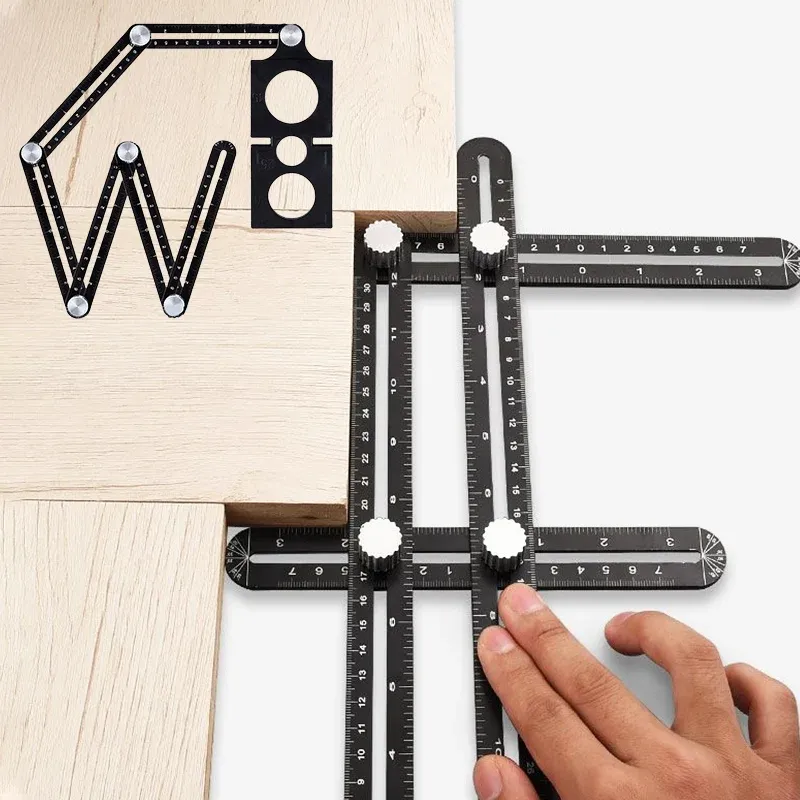
The Hard Part Is the Layout
Not Every Corner Gives You a Simple Measurement.
Angled walls, awkward edges and unusual cutouts can take more than one straight ruler. Build a physical template instead.
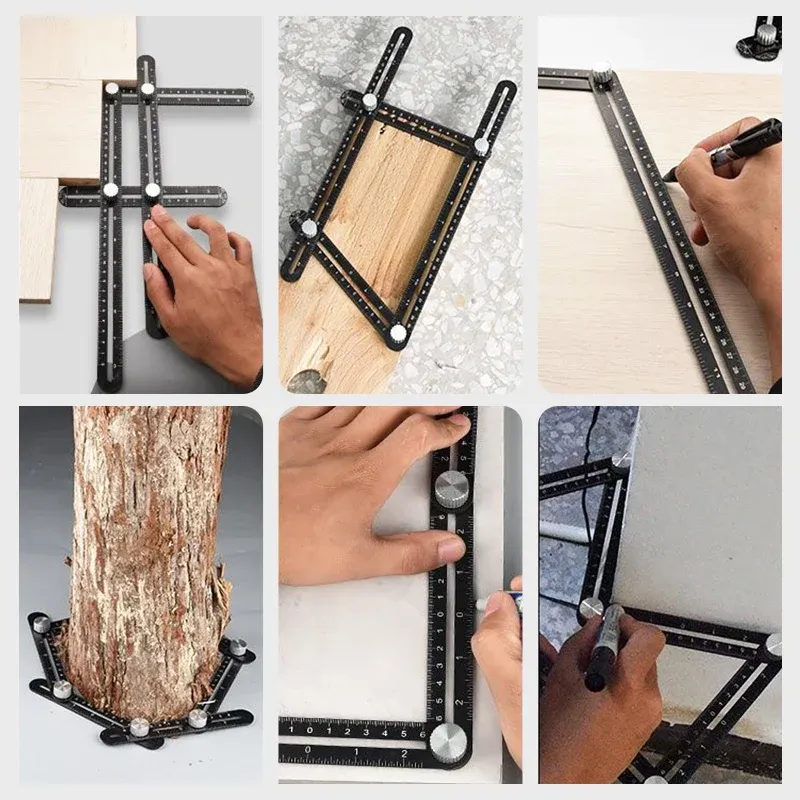
See How It Works
Three Moves. One Clear Layout.
Just like in the demonstration: set the outline, secure the shape, then trace it where the cut needs to go.
Loosen the knobs and position the connected rulers along the corner or obstacle.
02 Lock the Shape
Tighten the metal knobs so the chosen layout stays in place while you transfer it.
03 Trace & Check
Place the template on tile or wood, mark the outline, then double-check the fit before cutting.
Made for Hands-On Layouts
Small Parts That Make the Difference.
A mechanical template—not an electronic measuring device. The arms, joints and visible scales help you build and transfer a shape.
Sliding Arms
Move the linked sections to follow different outlines.
Metal Knobs
Secure the position before moving the template.
Visible Scales
Refer to the ruler markings when setting up a layout.
Hole Positioning
Locator openings are shown on the pictured configuration.
Built Around Real Projects
From Tile Corners to Weekend Builds.
Use the adjustable outline as a guide when marking materials for cuts and fit checks.
01
Tile & Flooring
Mark angles and edge shapes before trimming tiles or flooring pieces.
02
Woodworking
Transfer non-square corners onto boards and other flat stock.
03
DIY Renovation
Lay out fit lines around posts, edges and irregular obstacles.
Choose Your Configuration
Six-Fold or Twelve-Fold?
The source listing mentions both layouts. Select the version that matches your project and the seller's current product images.
6-Fold
Fewer connected sections for simpler outlines.
12-Fold
More connected sections for longer or more involved layouts.
The arms, included accessories and dimensions can differ between configurations. Only offer both options if both are in stock.
Product Information
Product Details
Multi-Angle Foldable Measuring Ruler with Hole Positioning
6-fold / 12-fold (select available option)
Aluminum alloy and plastic
25 mm (approximately 0.98 in)
170 mm measuring range; 120 mm scale range (supplier descriptions; verify by version)
25 mm / 40 mm inner diameters; check whether locator pieces are included
1 × selected folding measuring ruler (supplier-listed)
Tile, flooring, woodworking and general layout marking
The original listing mixes specifications for different configurations. Confirm the selected SKU's dimensions, knob count and hole-locator accessories with the supplier before publishing exact variant claims.
Good to Know
Quick Answers.
How does the ruler hold a shape?
Adjust the connected arms to the outline and tighten the knobs before moving it to the material you want to mark.
Can I use it to cut tile directly?
No. It is a layout and marking tool. Use appropriate separate cutting equipment after checking the marks and fit.
What's the difference between 6-fold and 12-fold?
They refer to different linked-arm configurations. Check the selected product images and specifications before ordering.
Are the hole-locator attachments included?
The supplied images show hole-positioning pieces, but the original package list does not specify their contents for each option. Confirm with the seller.
Will it guarantee a perfect cut?
It helps transfer a physical layout. The final result still depends on placement, marking, checking and cutting technique.
Measure the Shape, Not the Guess
Make the Mark Before You Make the Cut.
Choose your folding-ruler configuration and bring a more practical way to lay out those awkward corners.
Select the available version in the Shopify product options above.


